
diff options
Diffstat (limited to 'README.md')
| -rw-r--r-- | README.md | 85 |
1 files changed, 43 insertions, 42 deletions
@@ -4,45 +4,54 @@ A News Displaying app using Ionic Framework 3. ## Screeenshots: -| 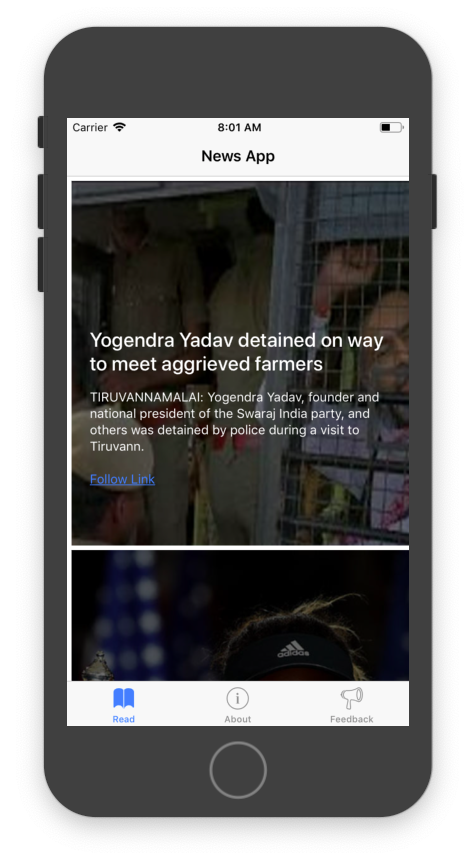 | 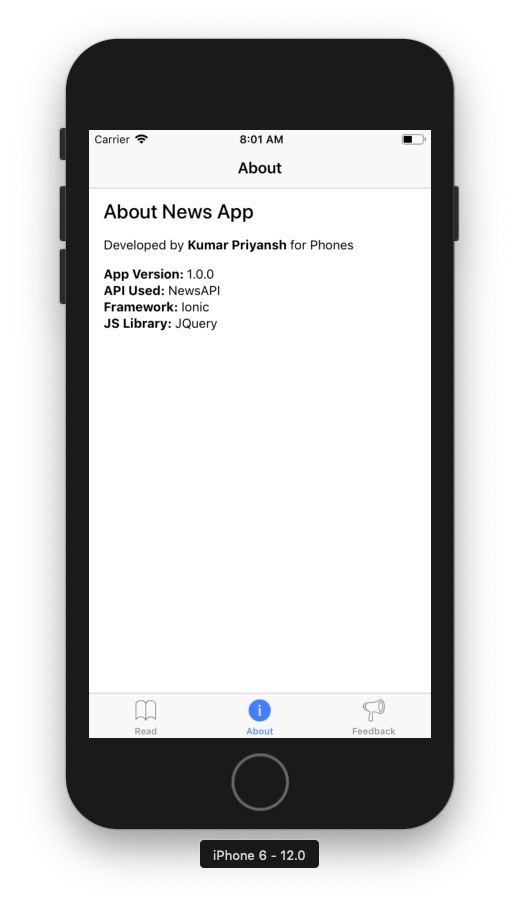 | 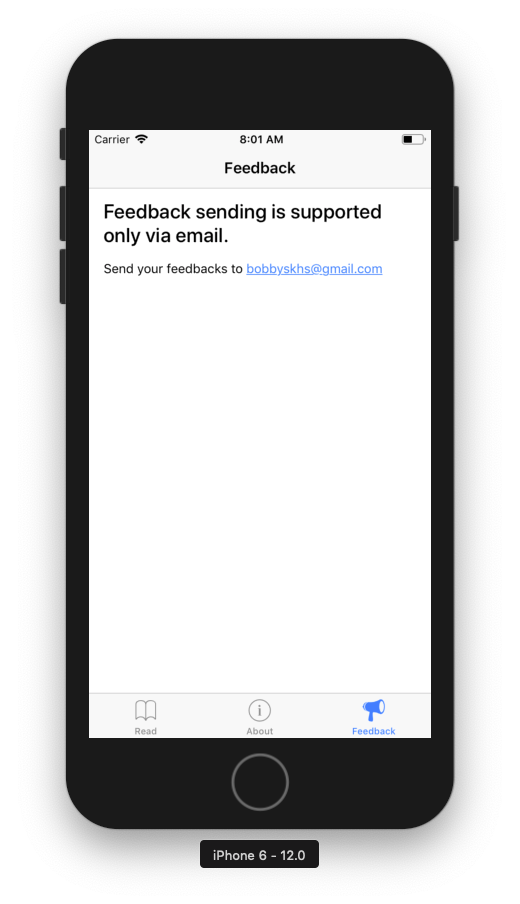 | -| --- | --- | --- | +|  |  |  | +| ----------------------------------------------------------------- | ----------------------------------------------------------------- | ----------------------------------------------------------------- | +| Main Screen | About Screen | Feedback Screen | ### How to start: -Start a terminal and type: +Start a terminal and type: -```npm +```npm install npm install + ``` Next Switch to the ionic folder and type: - ``` + ionic serve + ``` This would start the app in the Browser. -## Packaging for Android: -Make sure you have **Java JDK** and **Android Studio** installed. Also update Android SDK tools, platform and component dependencies, available through Android Studio’s SDK Manager. Run your app on your device by typing: +## Packaging for Android: + +Make sure you have **Java JDK** and **Android Studio** installed. Also update Android SDK tools, platform and component dependencies, available through Android Studio’s SDK Manager. Run your app on your device by typing: ``` + ionic cordova run android --device + ``` This will produce a debug build of your app, both in terms of Android and Ionic’s code Enabling USB debugging and Developer Mode can vary between devices, but is easy to look up with a Google search. You can also check out [Enabling On-device Developer Options](https://developer.android.com/studio/run/device.html#developer-device-options) in the Android docs. -#### Production Builds +#### Production Builds To run or build your app for production, run - ``` + ionic cordova run android --prod --release + # or + ionic cordova build android --prod --release + ``` This will minify your app’s code as Ionic’s source and also remove any debugging capabilities from the APK. This is generally used when deploying an app to the Google Play Store. @@ -52,9 +61,10 @@ This will minify your app’s code as Ionic’s source and also remove any debug If you want to release your app in the Google Play Store, you have to sign your APK file. To do this, you have to create a new certificate/keystore. Let’s generate your private key using the keytool command that comes with the JDK: - ``` + keytool -genkey -v -keystore my-release-key.jks -keyalg RSA -keysize 2048 -validity 10000 -alias my-alias + ``` You’ll first be prompted to create a password for the keystore. Then, answer the rest of the nice tools’s questions and when it’s all done, you should have a file called my-release-key.jks created in the current directory. @@ -62,20 +72,22 @@ You’ll first be prompted to create a password for the keystore. Then, answer t **Note**: Make sure to save this file somewhere safe, if you lose it you won’t be able to submit updates to your app! To sign the unsigned APK, run the jarsigner tool which is also included in the JDK: - ``` + jarsigner -verbose -sigalg SHA1withRSA -digestalg SHA1 -keystore my-release-key.jks app-release-unsigned.apk my-alias + ``` This signs the APK in place. Finally, we need to run the zip align tool to optimize the APK. The zipalign tool can be found in`/path/to/Android/sdk/build-tools/VERSION/zipalign`. For example, on OS X with Android Studio installed, zipalign is in`~/Library/Android/sdk/build-tools/VERSION/zipalign`: - ``` + zipalign -v 4 app-release-unsigned.apk HelloWorld.apk + ``` To verify that your apk is signed run apksigner. The apksigner can be also found in the same path as the zipalign tool: - ``` + apksigner verify NewsApp.apk ``` @@ -85,40 +97,29 @@ All steps can also be found here: [Android SDK docs](https://developer.android.c ## Packaging for iOS -#### Requirements +#### Requirements -- Xcode 7 or higher - -- iOS 9 - -- A free[Apple ID](https://appleid.apple.com/)or paid Apple Developer account - +- Xcode 7 or higher +- iOS 9 +- A free[Apple ID](https://appleid.apple.com/)or paid Apple Developer account -#### Creating a Provisioning Profile +#### Creating a Provisioning Profile To start, you’ll need to set up a provisioning profile to code sign your apps. -1. Open Xcode preferences (Xcode > Preferences…) - -2. Click the ‘Accounts’ tab - -3. Login with your Apple ID (+ > Add Apple ID…) - +1. Open Xcode preferences (Xcode > Preferences…) +2. Click the ‘Accounts’ tab +3. Login with your Apple ID (+ > Add Apple ID…) #### Running Your App -1. Run a production build of your app with`ionic cordova build ios --prod` - -2. Open the`.xcodeproj`file in`platforms/ios/`in Xcode - -3. Connect your phone via USB and select it as the run target - -4. Click the play button in Xcode to try to run your app - -5. Oops, code signing error! No problem. - - 1. Go to the ‘Project Editor’ by clicking the name or your project in the ‘Project Navigator’ - - 2. Select the ‘General’ section - - 3. Select the team associate with your signing certificate from the ‘Team’ dropdown in the ‘Signing’ section +1. Run a production build of your app with`ionic cordova build ios --prod` +2. Open the`.xcodeproj`file in`platforms/ios/`in Xcode +3. Connect your phone via USB and select it as the run target +4. Click the play button in Xcode to try to run your app +5. Oops, code signing error! No problem. + 1. Go to the ‘Project Editor’ by clicking the name or your project in the ‘Project Navigator’ + + 2. Select the ‘General’ section + + 3. Select the team associate with your signing certificate from the ‘Team’ dropdown in the ‘Signing’ section |